Forms and validation
Use lightning-input with reportValidity for field-level checks, and loop through every input before submit to block a form with errors.
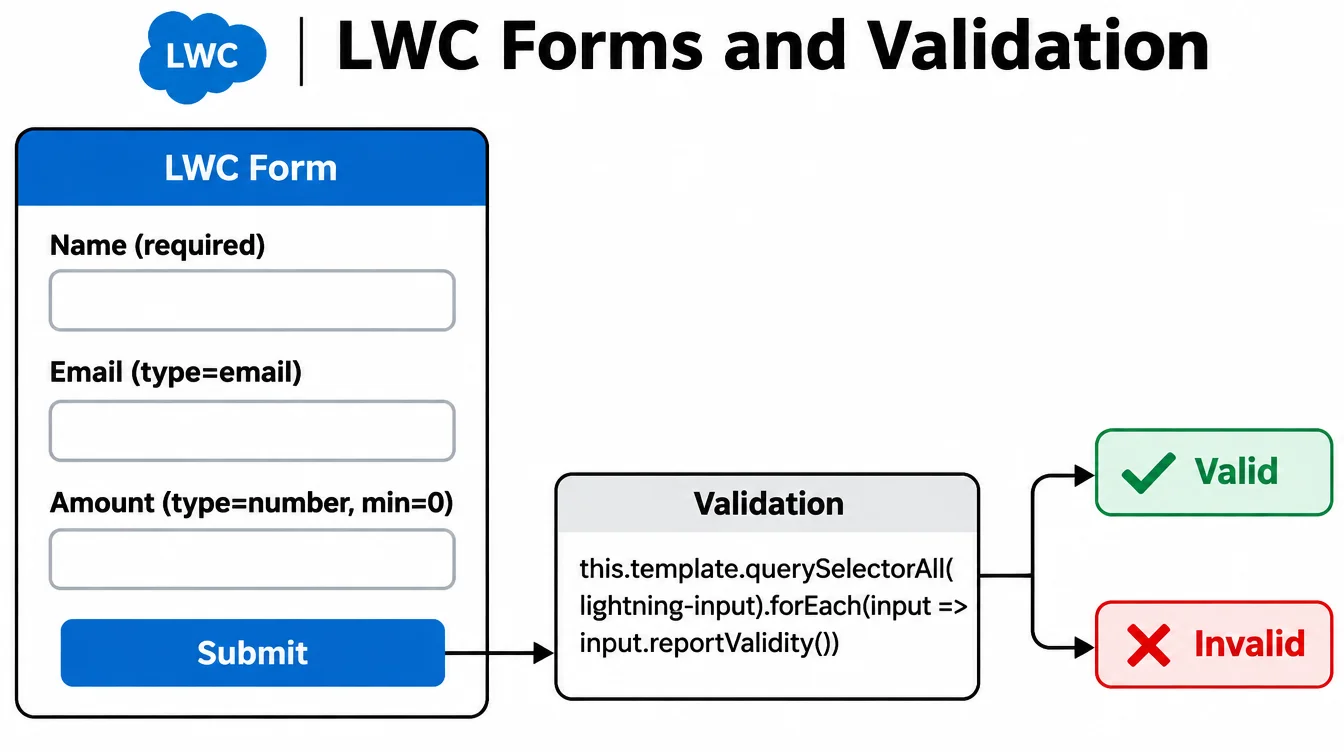
Built-in validation
lightning-input validates automatically for required, type, min, max, pattern, and minlength. Call input.reportValidity() to show the error message under the field.
input.checkValidity() returns true or false without showing anything. Use it to decide whether to proceed, then call reportValidity() to show the user what's wrong.
Validating the whole form
Before submit, loop through every input: this.template.querySelectorAll('lightning-input').forEach(input => { input.reportValidity(); }). Block the submit if any field is invalid.
A simpler pattern: const allValid = [...this.template.querySelectorAll('lightning-input')].reduce((valid, input) => input.reportValidity() && valid, true);.
Custom validation
Call input.setCustomValidity('End date must be after start date') then input.reportValidity() to show a custom message. Clear it with input.setCustomValidity('') before re-validating.
For record forms, lightning-record-edit-form handles validation, submission, and error display. Use it when the form maps directly to an SObject.
Example
javascript
export default class ContactForm extends LightningElement {
  handleSubmit() {
    const inputs = this.template.querySelectorAll('lightning-input');
    const allValid = [...inputs].reduce(
      (valid, input) => input.reportValidity() && valid,
      true
    );
    if (!allValid) return;
    // all fields passed — call Apex or dispatch event
  }
}